Managing Subscriptions and Rentals
To navigate to a particular subscription, click on "Subscriptions" button in the customer portal, then select the relevant subscription you wish to adjust. Your list of subscriptions and rentals can also be found at the following link Subscriptions
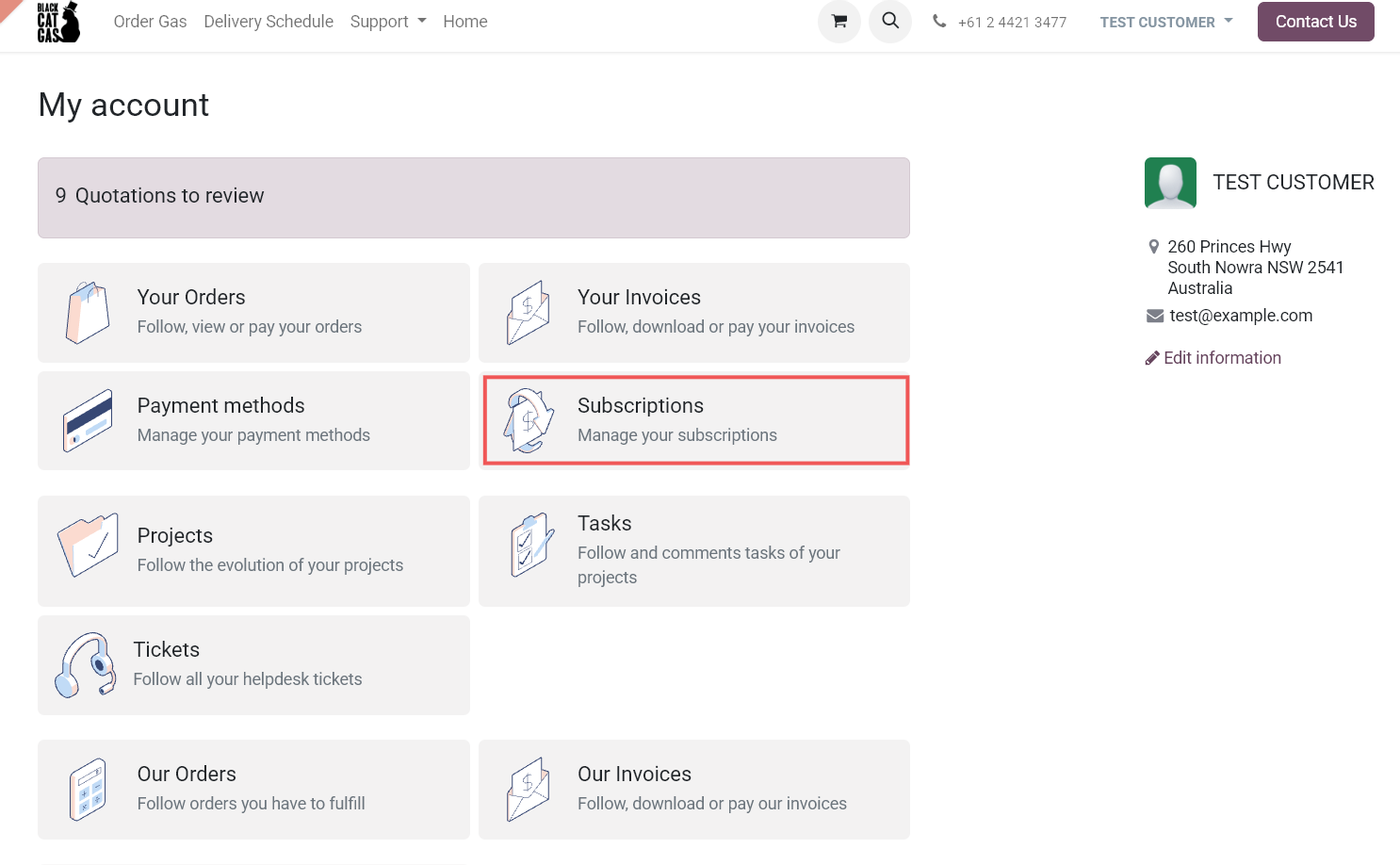

This will open the subscription menu and allow you to do the below actions.
How to setup or remove a saved payment method for a subscription
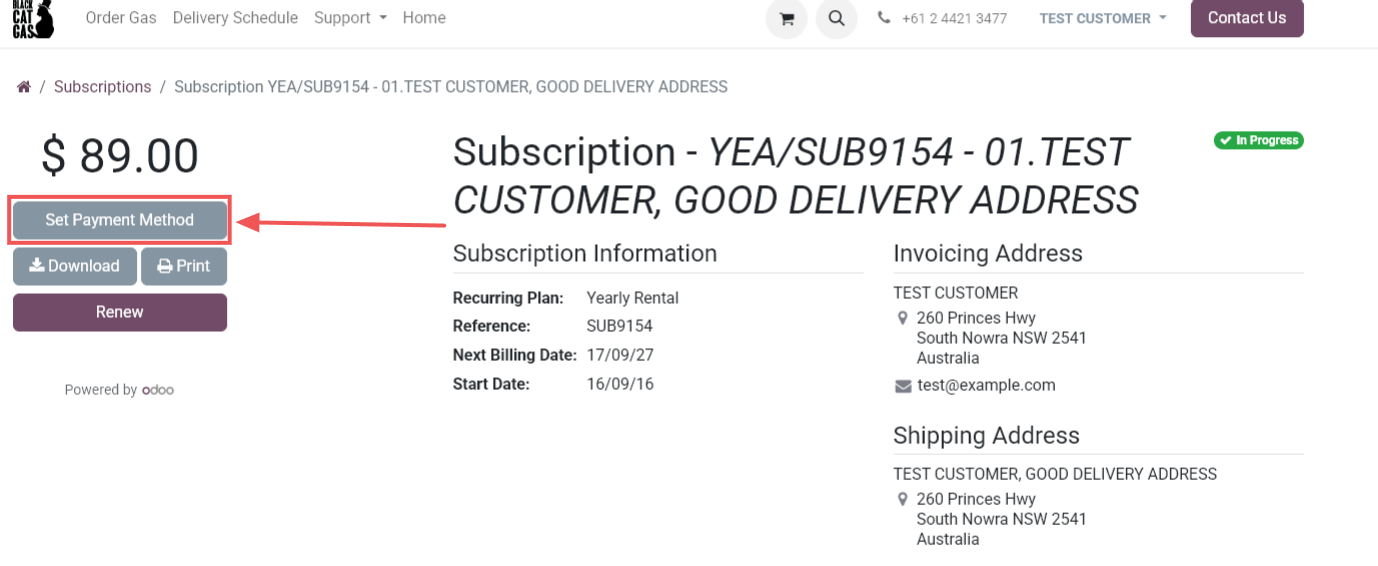
To add or remove a payment method, such as a credit or debit card follow the above instructions to navigate to the subscription you want to edit and select "Set Payment Method".
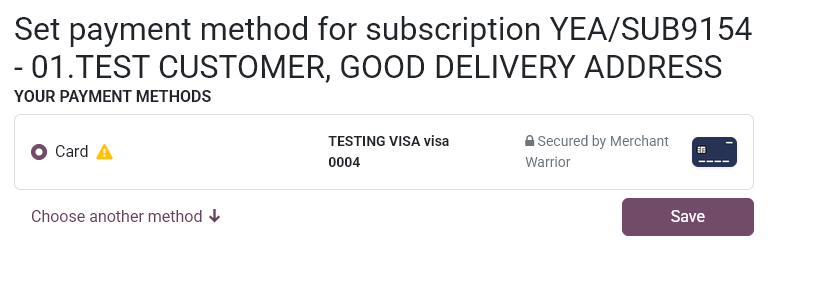
Select either a saved payment method from the list, or add a new one by selecting "Choose another method".
Please note that multiple subscriptions and rentals will need to have payment methods set individually.
How to renew a rental or subscription early
This will allow you to pay a rental in advance of the next billing date.
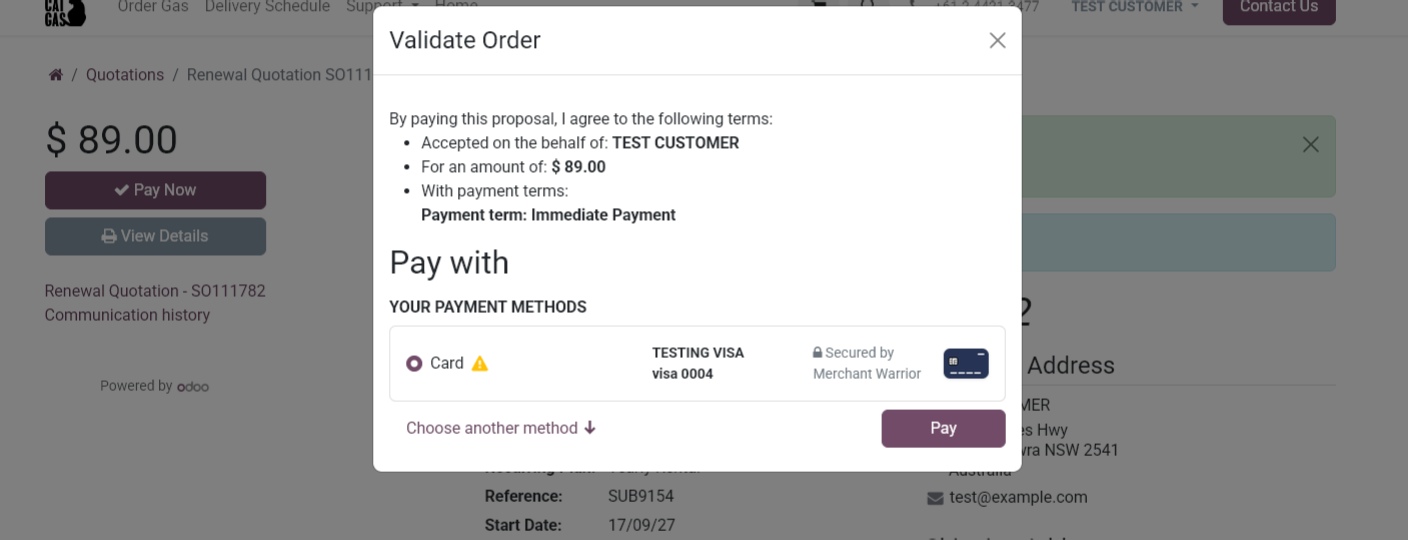
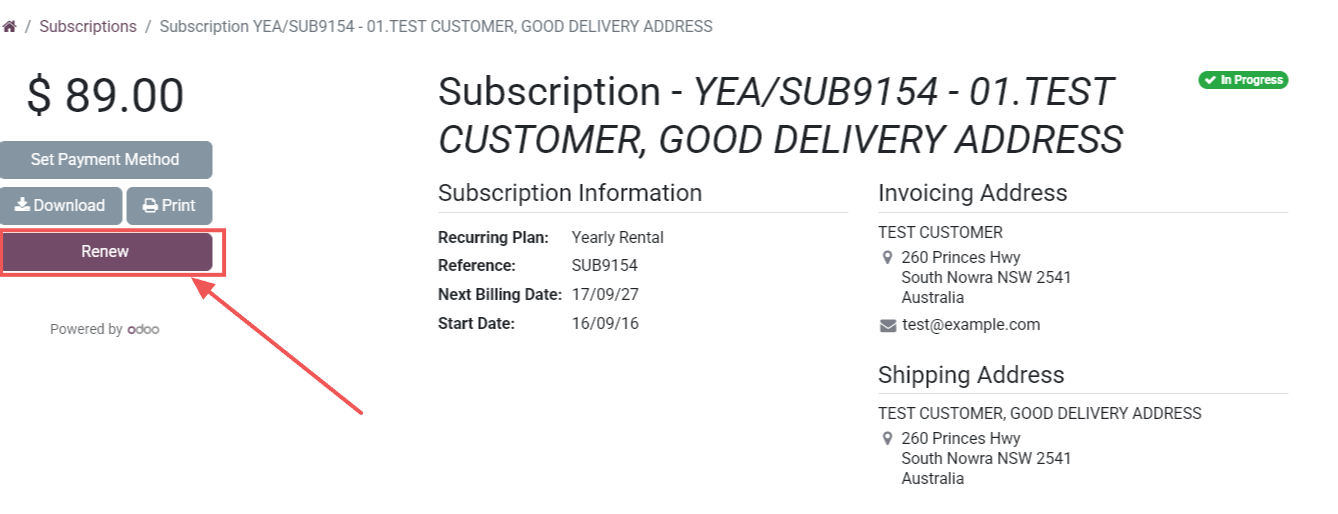
While in the subscription menu, click on "Renew".
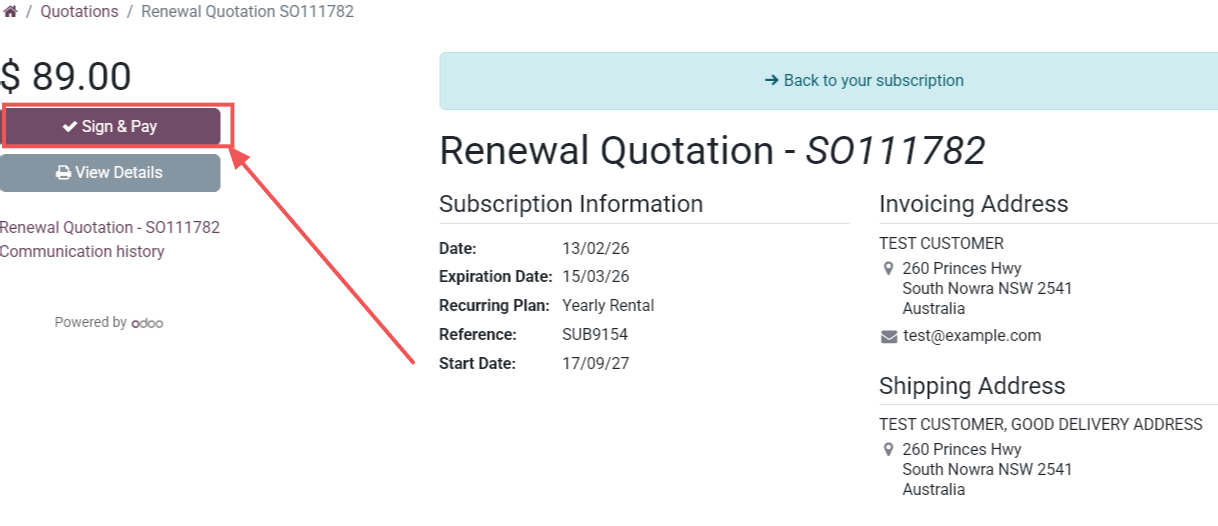
Click "Sign & Pay" on the following screen.
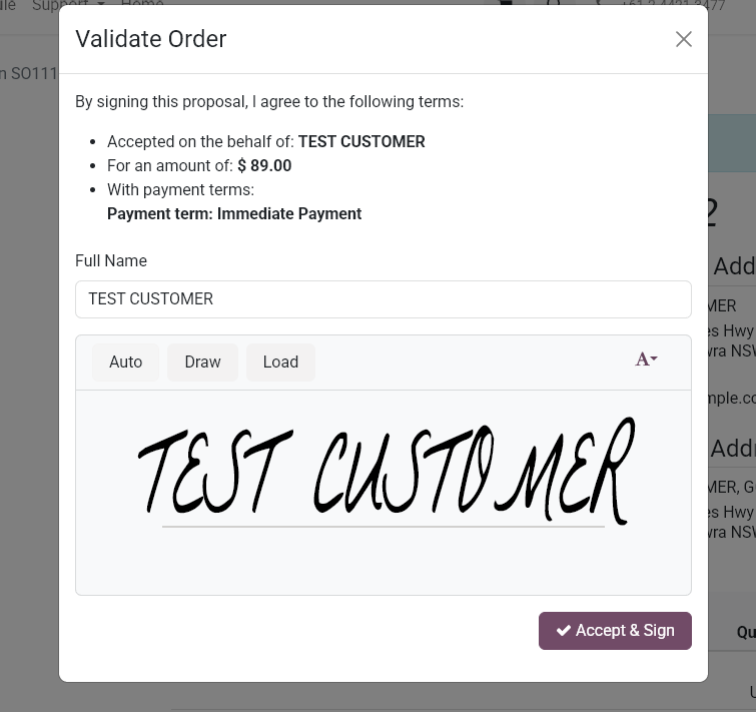
Click "Accept & Sign" if required.
Choose the appropriate payment method or add a new one by selecting "Choose another method".